New Feature: Smarter Shift Scheduling for Festivals
Managing a festival schedule is like solving a giant puzzle. Crescat helps you put the pieces together and to make things even easier, we’ve updated how shifts work in Crescat, giving you more flexibility and clearer visual overview.
Here is a breakdown of what’s new and how it helps you.
Understanding Section Types
As you will already know, each festival section falls into one of two categories. To make this easier to spot when working in an event, we’ve added a badge for those that "Follow Events". Here's a reminder on how these different section types work when scheduling shifts:
- Follows Events: Shifts are "tied" to events. If the show moves to a later time, the shift (and the crew member) moves with it automatically.
- Best for: Lighting ops, stage managers, or monitor engineers.
- Independent: These shifts stay exactly where you put them, regardless of what’s happening on stage and whether any show moves in time.
- Best for: Security, bar staff, or logistics coordinators.
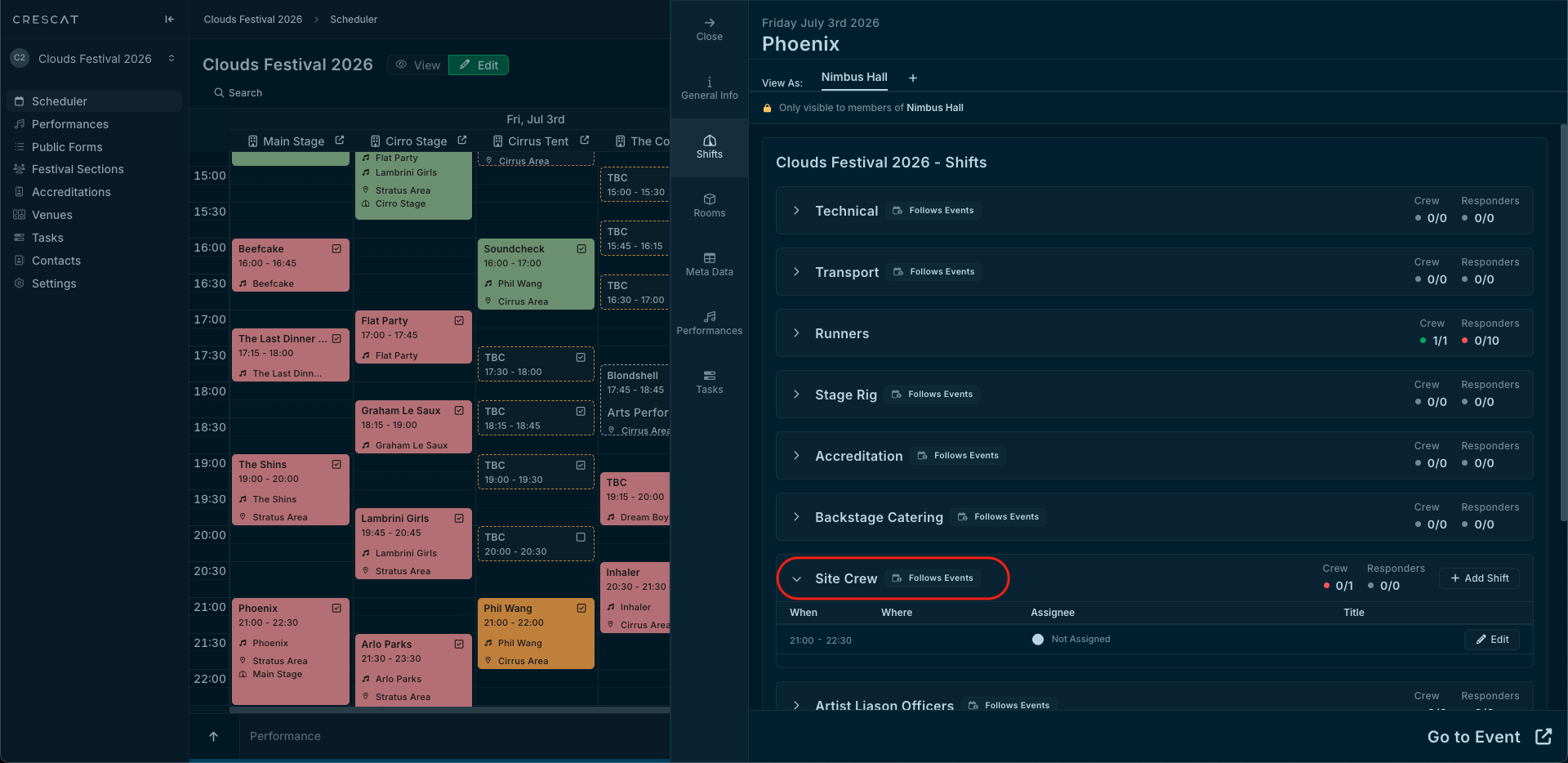
Add Independent Shifts Faster
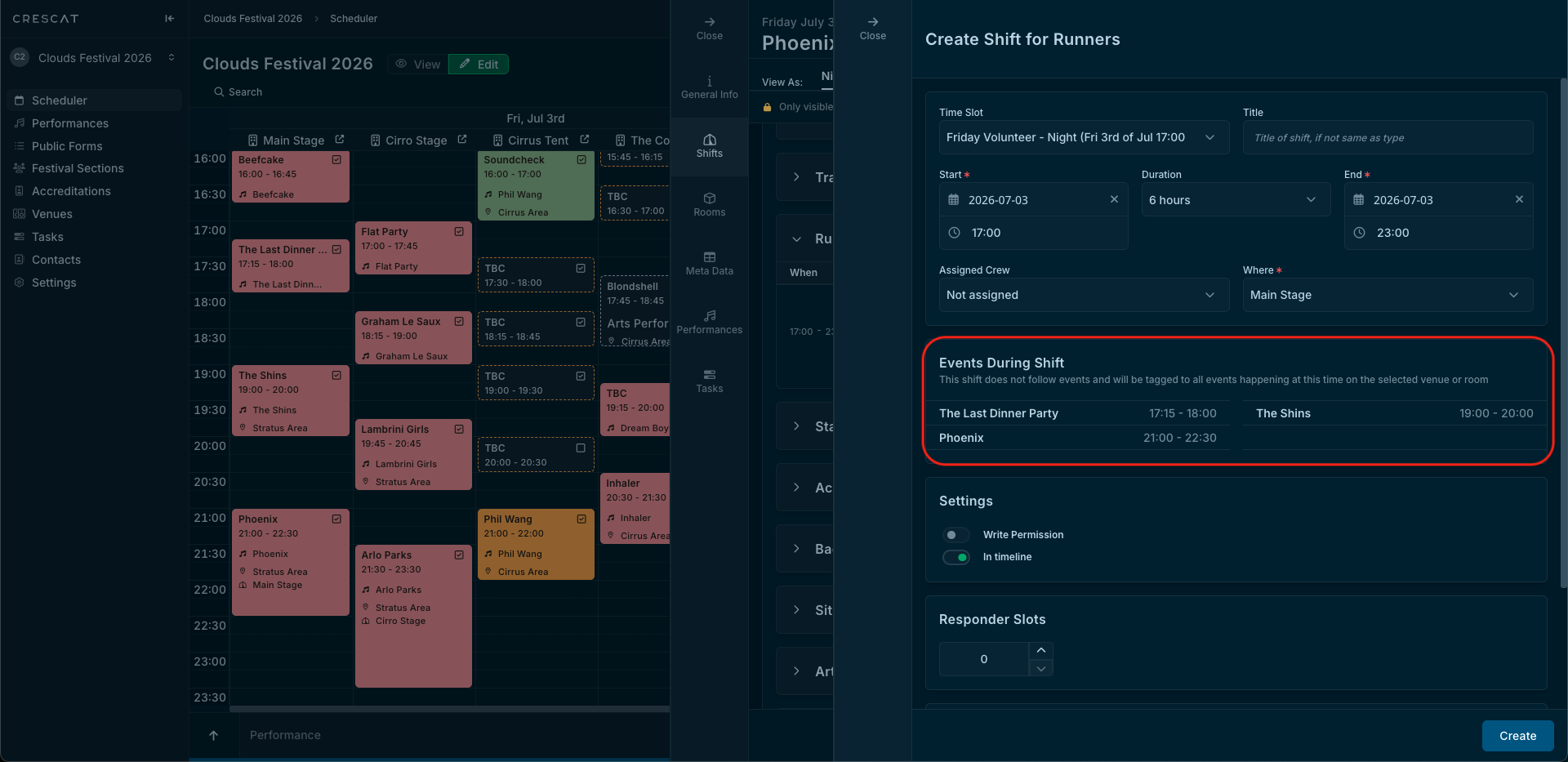
If you're working on an event in your schedule and need to schedule Crew/Volunteers, you no longer have to navigate to Festival Sections to handle your staff that are in Independent sections. You can now add shifts for them directly from the Shifts tab and it will handily show you which events are taking place during the shift..
Pro Tip: For an Independent shift to appear, just make sure the event has a venue added. Since the shift isn’t tied to a specific act, Crescat uses the venue to anchor it to the map.
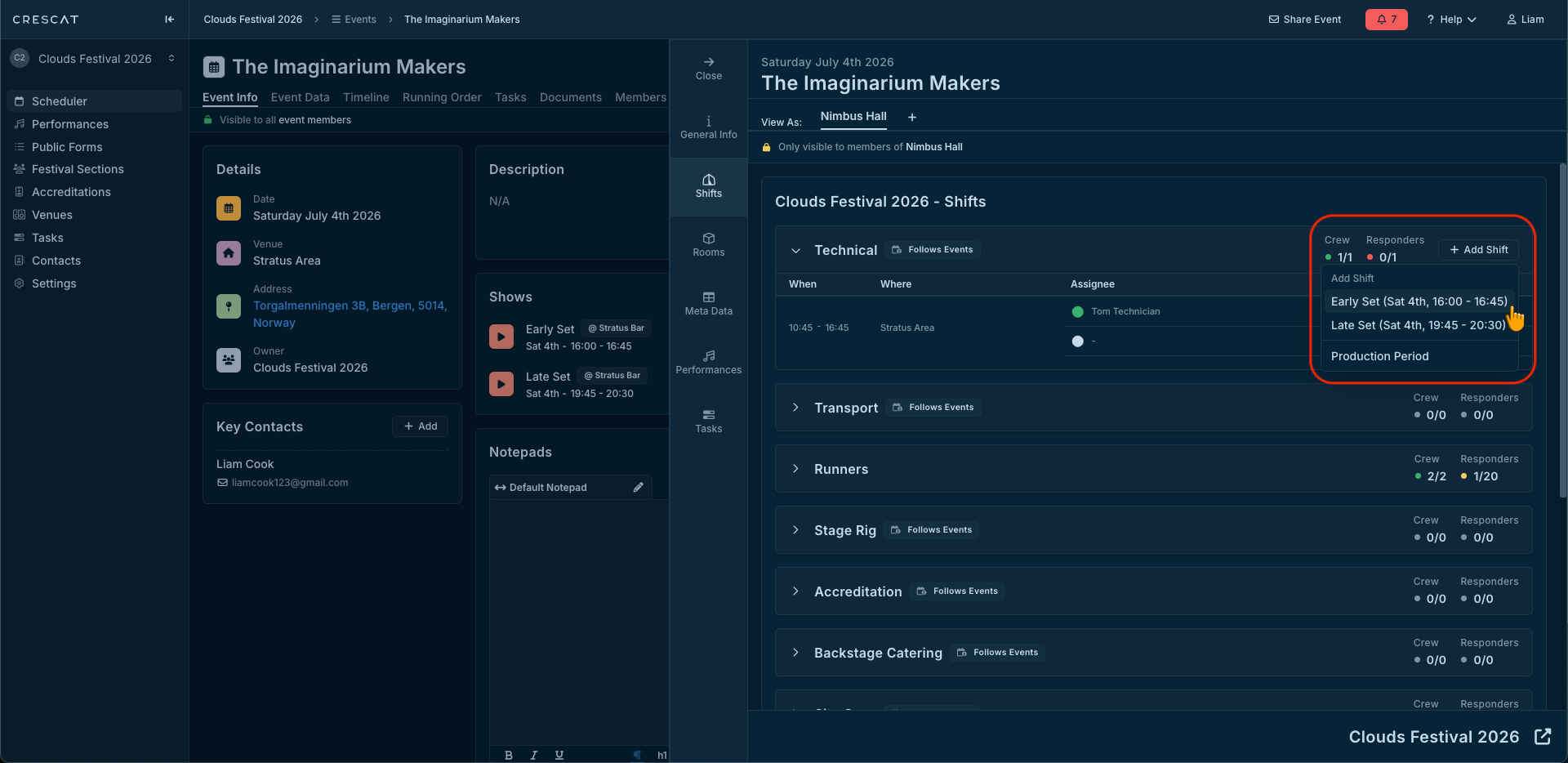
Precise Timing: Show Time vs. Production Period
Scheduling shifts for an act that has an afternoon set and an evening set? You now have granular control over shift windows. When creating a shift, you can choose:
- Show Time: Ties the shift to a specific show time (e.g., just the 45-minute set).
- Production Period: Covers the entire event duration, including setup, soundcheck, and breakdown.
This ensures your crew knows exactly when they are needed without any "time-range" guesswork. Just click "add shift" in the event and you will be presented with your show time and production period options.
Summary of Benefits
- Less manual work: "Follows Events" shifts handle schedule changes for you.
- Less clicks: No need to navigate to other parts of the system, handle your shift management in the event you're working on.
- Clearer workflow: Badges tell you exactly how a section behaves at a glance.
- Total flexibility: Create shifts where you need them, when you need them.