Feature Upgrade: New batch of upgrades to Event Requests and Shared Calendars
For Venues and Agencies, getting your booking process right is crucial for securing new business. Here at Crescat, we have listened to your feedback, and made it easier to manage your booking process in Crescat, with a new batch of upgrades to our Event Request and Shared Calendar features.
Soft Access Lists are now Shared Calendars
First, a new name. What you knew as Soft Access Lists are now called Shared Calendars. They work the same way, and you find them in your group settings under "Shared Calendars". Everything you had set up is still there.
New features on Shared Calendars
A shared calendar is how you show your rooms and bookings to people outside your organisation. These updates give you more control over what they see and make it easier for them to send you a request.
Tell people what they need to know before they book
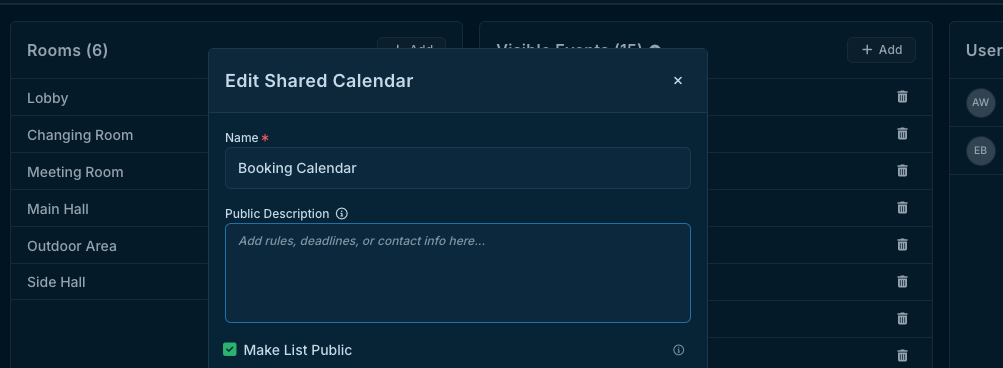
You can now add a "Public Description" to a shared calendar. It is shown in a banner above the public calendar, so it is a good place to put booking rules, deadlines or who to contact, for example.
Choose exactly which events show up
The "Visible Events" box lets you decide what appears on the calendar. You can add one or more Event Types, Drop-in Bookings and Calendar subscriptions, which allows you to show events from external calendars your group subscribes to.
Invite people who aren't on Crescat yet
You can now invite someone to access a shared calendar by email, even if they don't have a Crescat account. Just type their email address, and they get an email invitation.
New features on Event Requests
The request forms themselves have had plenty of attention too, both for you as the admin and for the people sending requests.
Accept requests automatically
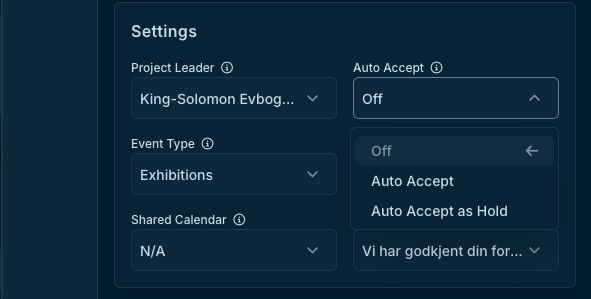
In the form settings you can now set "Auto Accept". You have two choices:
"Auto Accept" to approve incoming requests as confirmed bookings.
"Auto Accept as Hold" to approve them as a hold event instead
Important: Auto Accept needs a "Project Leader" set on the form.
Get notified as soon as a request comes in
The form's project leader now gets an in-app notification when a new request arrives. You can also pick other people to notify under "Notify on Submission", so the right colleagues hear about it straight away.
Write replies that fill themselves in
Under "Event Requests Responses" you now have three types of response: "Accepted", "Declined" and a new "Submitted" response. The Submitted response is sent to the requester as soon as they send their request.
You can use tags in your automated responses, such as "Event Name", "Event Start", "Requester Name" and "Project Leader Email".
Invite the requester to the event, with the access you choose
When you accept a request, you can choose "Invite requester to event" and decide what they can do:
"Read" to let them view the event
"Write" to let them edit it
This works for requesters who don't have a Crescat account too.
Explain your fields to requesters
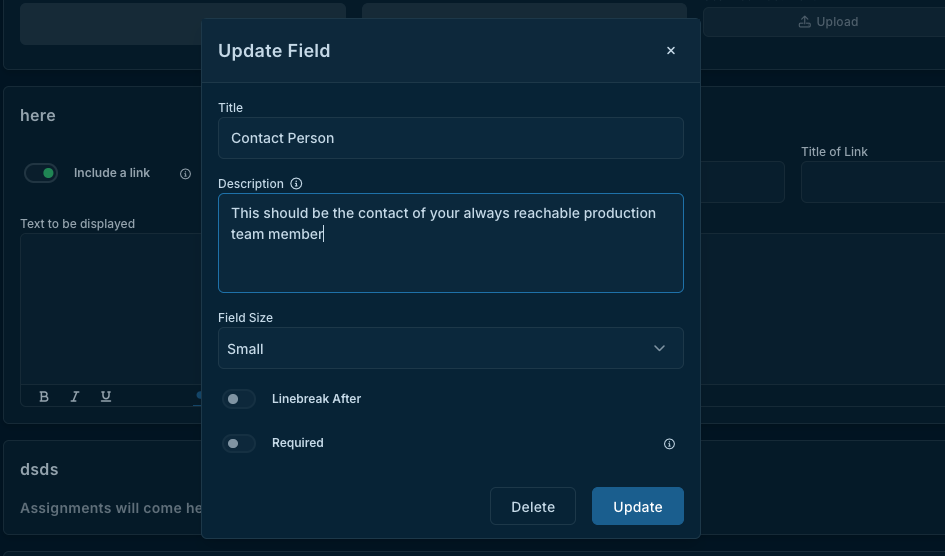
You can now add a "Description" to meta data fields that you have as part of the form. It is shown when the requester hovers the field, and they can tap it on mobile.
Share a form with people outside Crescat
You can now invite people who aren't on Crescat to an event request form by email. Just like on shared calendars, they show as "Invited" until they join, with options to resend or revoke the invite.
For people sending requests
Follow up on requests with a Crescat account
Requesters can now create a Crescat account from the request form. This will allow them to keep track of requests they have sent. They just click "create an account" under the contact details, and Crescat emails them a link to finish setting it up.
Track, edit and withdraw requests
Once they're signed in, requesters get a "Submitted Requests" box on their dashboard, split into "Pending", "Accepted" and "Declined". "View All" opens the "My Event Requests" page, where they can:
See the status of every request they've sent
"Edit" a request
"Withdraw" a request, if no longer needed
"Open form" or "Open calendar" for the forms and shared calendars they're connected to, or the option "Leave" them and lose their access to them
When a requester edits a request, the admin is notified and the access the requester has been given stays in place.
Here's a handy use Case for Venues: A promoter sends a request, then realises the date is wrong. Instead of emailing you, they open My Event Requests >> edit the date >> and you see the change straight away.
That is the quick run-through of what's new in Event Requests and Shared Calendars, and we know it will make managing your bookings on Crescat more effective and efficient. Keep an eye on our Release Notes, for future updates.